Collection Pages — Auto-Generated URLs from Your Data
A Collection Page is a template system that generates numerous unique URLs, each populated with data from different entries in a Levo Collection.
What Are Collection Pages?
Core Concept
A Collection Page is a template system that generates numerous unique URLs, each populated with data from different entries in a Levo Collection. One template design produces multiple rendered pages with substituted data for each entry.
Why Collection Pages Matter
Problem Comparison: Without Collection Pages, creating 1,000 city landing pages requires building 1,000 individual pages — manual, error-prone, and difficult to maintain. With Collection Pages, you design one template and connect it to a Collection with 1,000 entries; Levo automatically generates all 1,000 pages with unique URLs, content, meta titles, and OG tags.
Three Key Benefits
Benefit | Description |
|---|---|
Scale | Generate millions of pages in minutes rather than months |
Easy updates | Editing a Collection entry automatically updates all pages using it |
SEO at scale | Each page receives a unique URL and meta tags for individual search engine indexing; sitemaps update automatically upon publishing |
Real-World Example: Pet Marketplace
A pet marketplace wanting to rank for searches like "buy cat in Los Angeles" can use 10 animal entries and 1,000 city entries to create 10,000 pages. Manual creation takes weeks; using Collection Pages takes minutes.
Setup Instructions
Step 1: Create Collections
Collections power the pages, with each entry becoming a page variation. Each entry must include a slug — the URL-safe identifier appearing in the final page URL. Levo auto-generates slugs from entry names, which can be edited in the Collection module.
Step 2: Create the Page
In Studio, click Create Page. You will see a template selection screen with options like Blank Page and other pre-built templates.
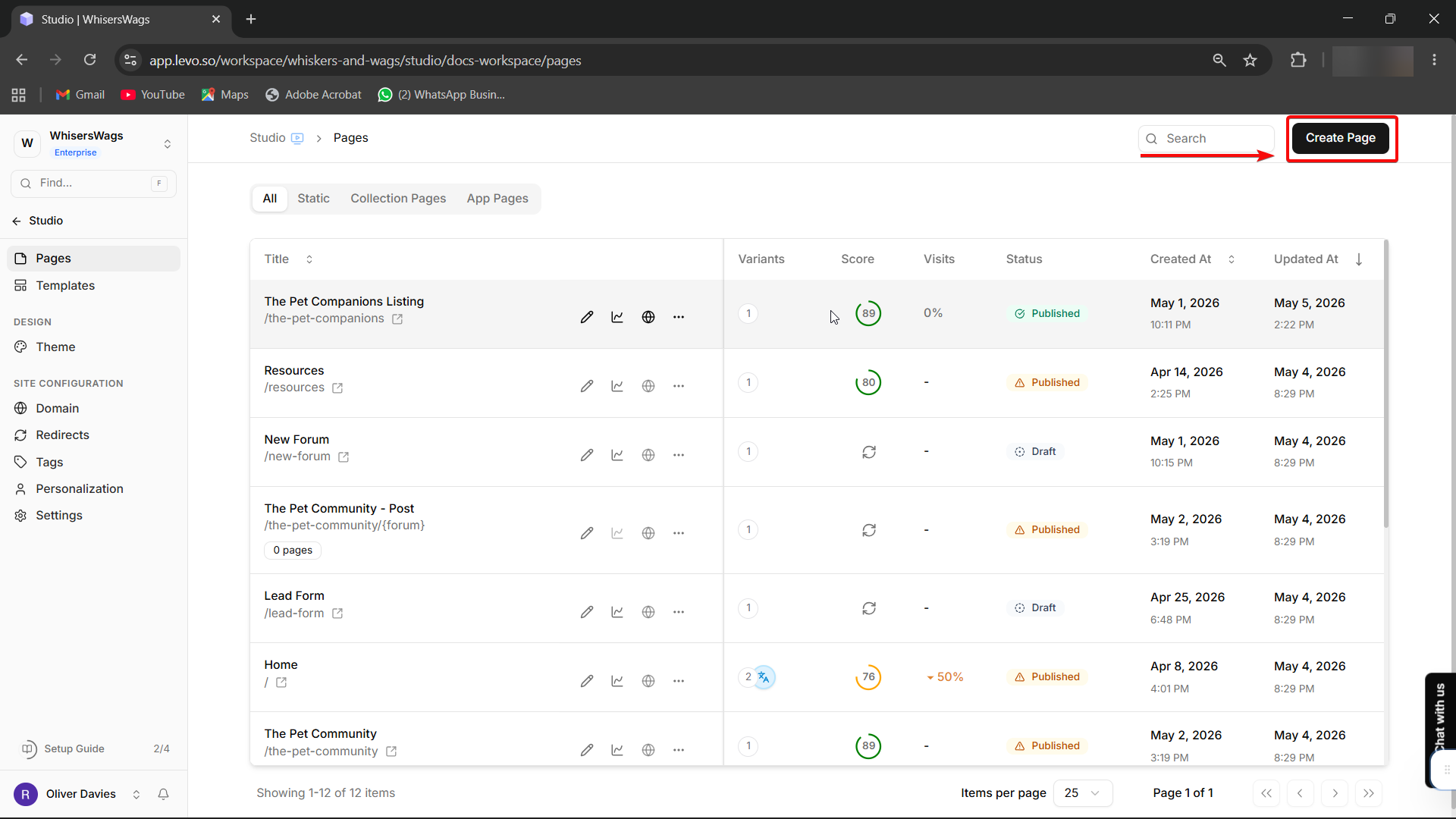
Select a Template
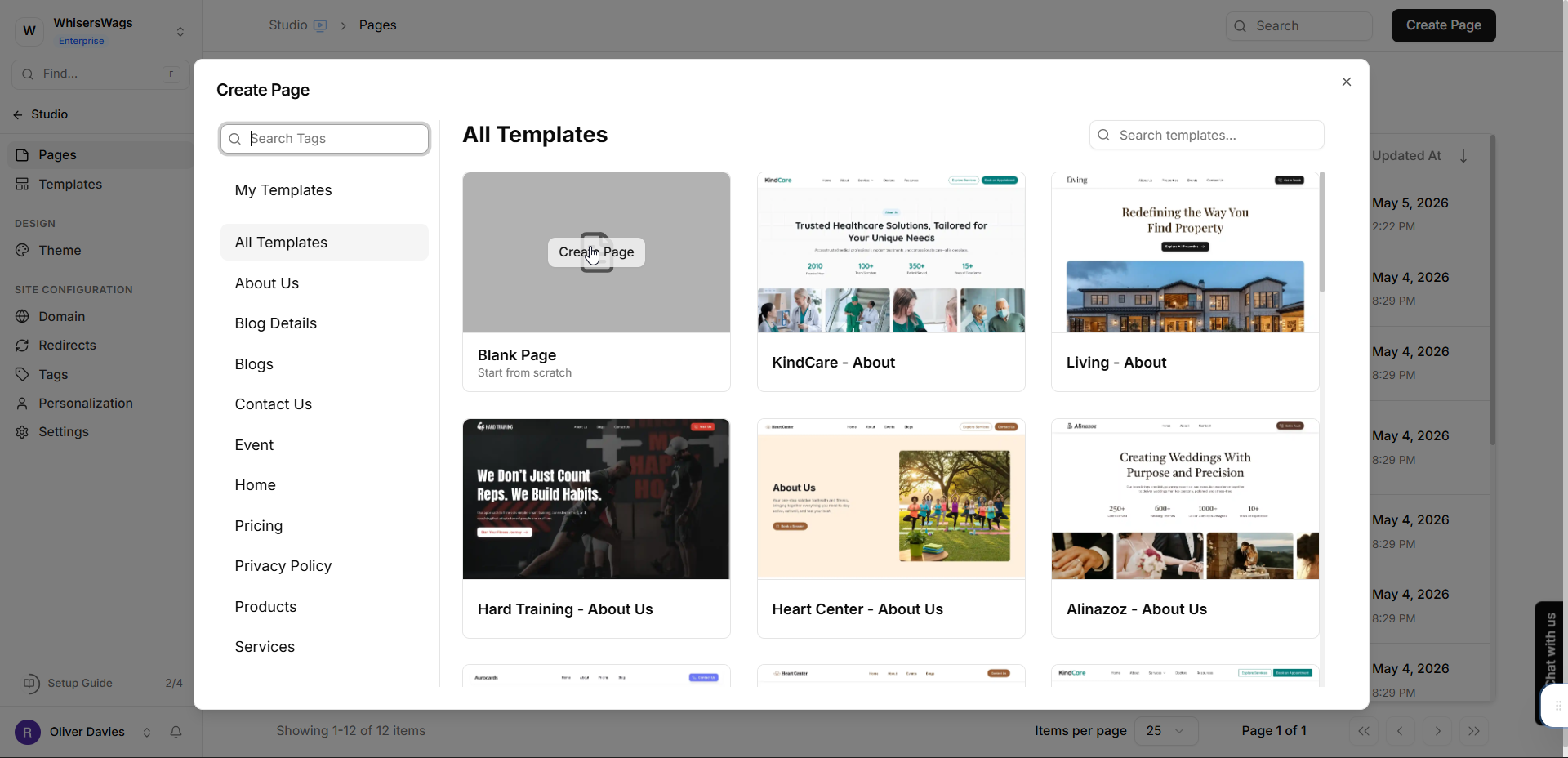
Select a template — choose Blank Page to start from scratch, or pick any other template as your starting design.
Configure the Page Type
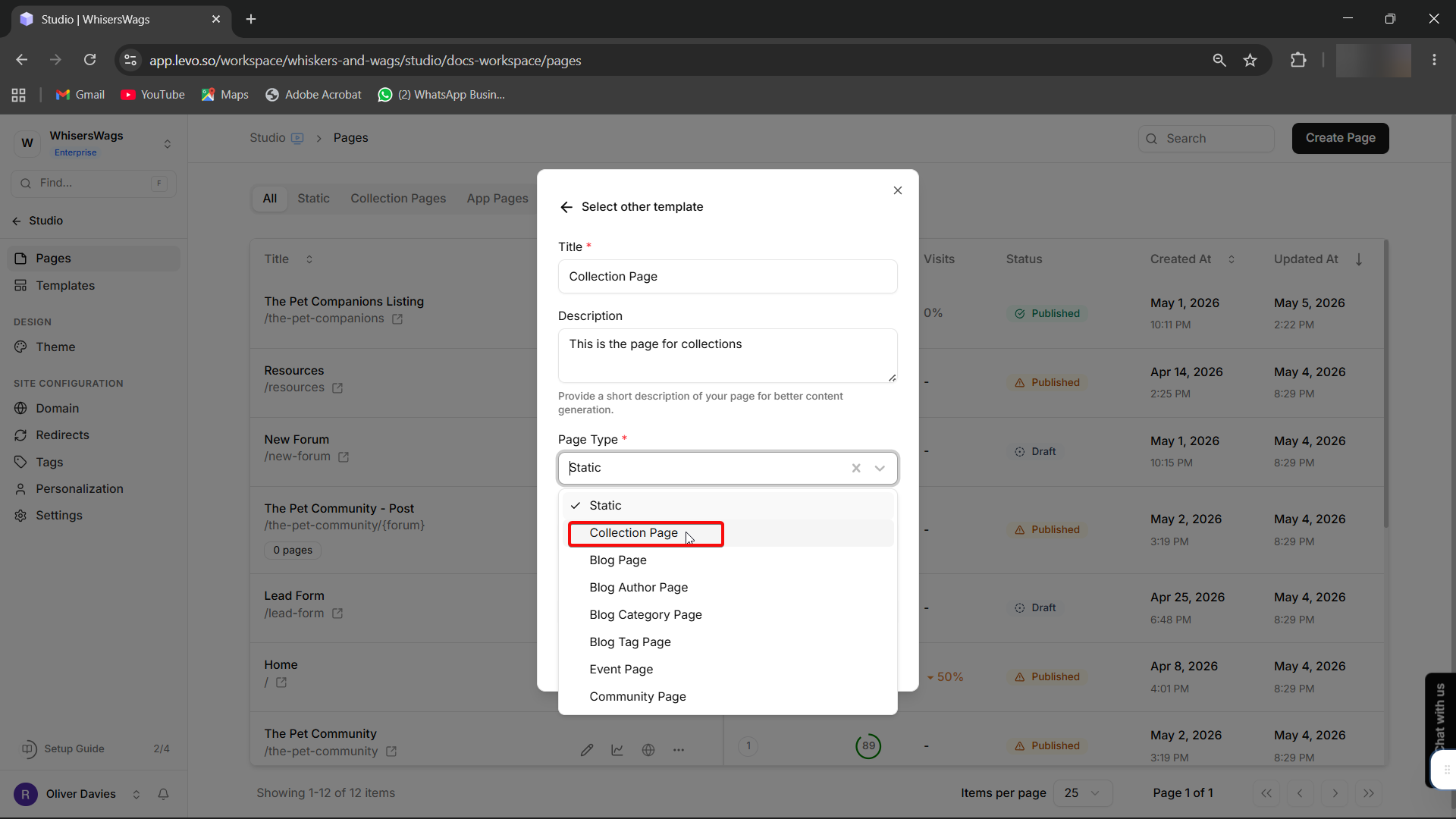
On the next screen, a form appears with a Page Type dropdown — change it from "Static" to "Collection Page".
Enter Page Details
Enter your page title and description.
Add Collection Sources
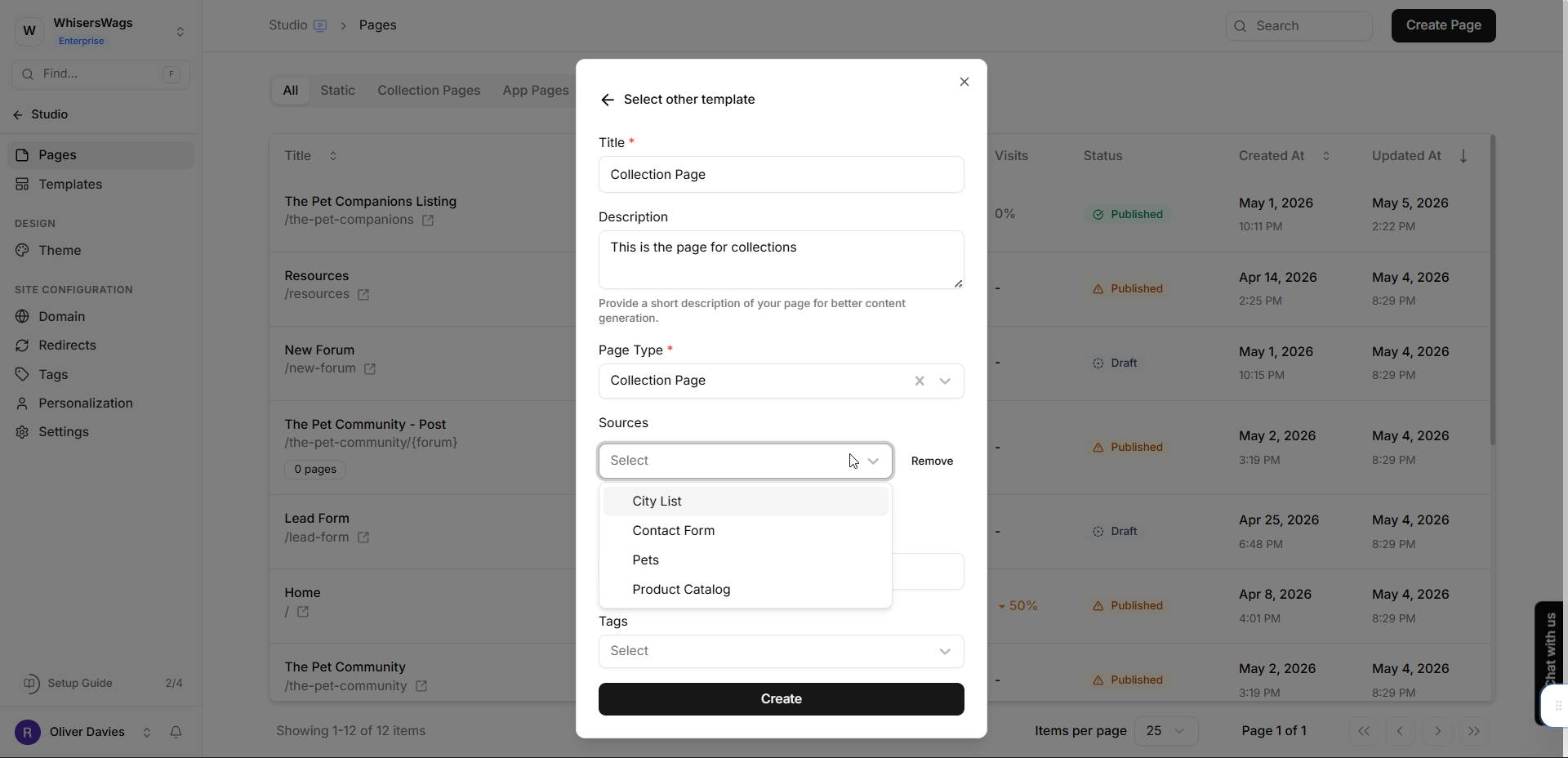
Click Add Source and select your Collection(s) from the dropdown.
Configure the Page URL
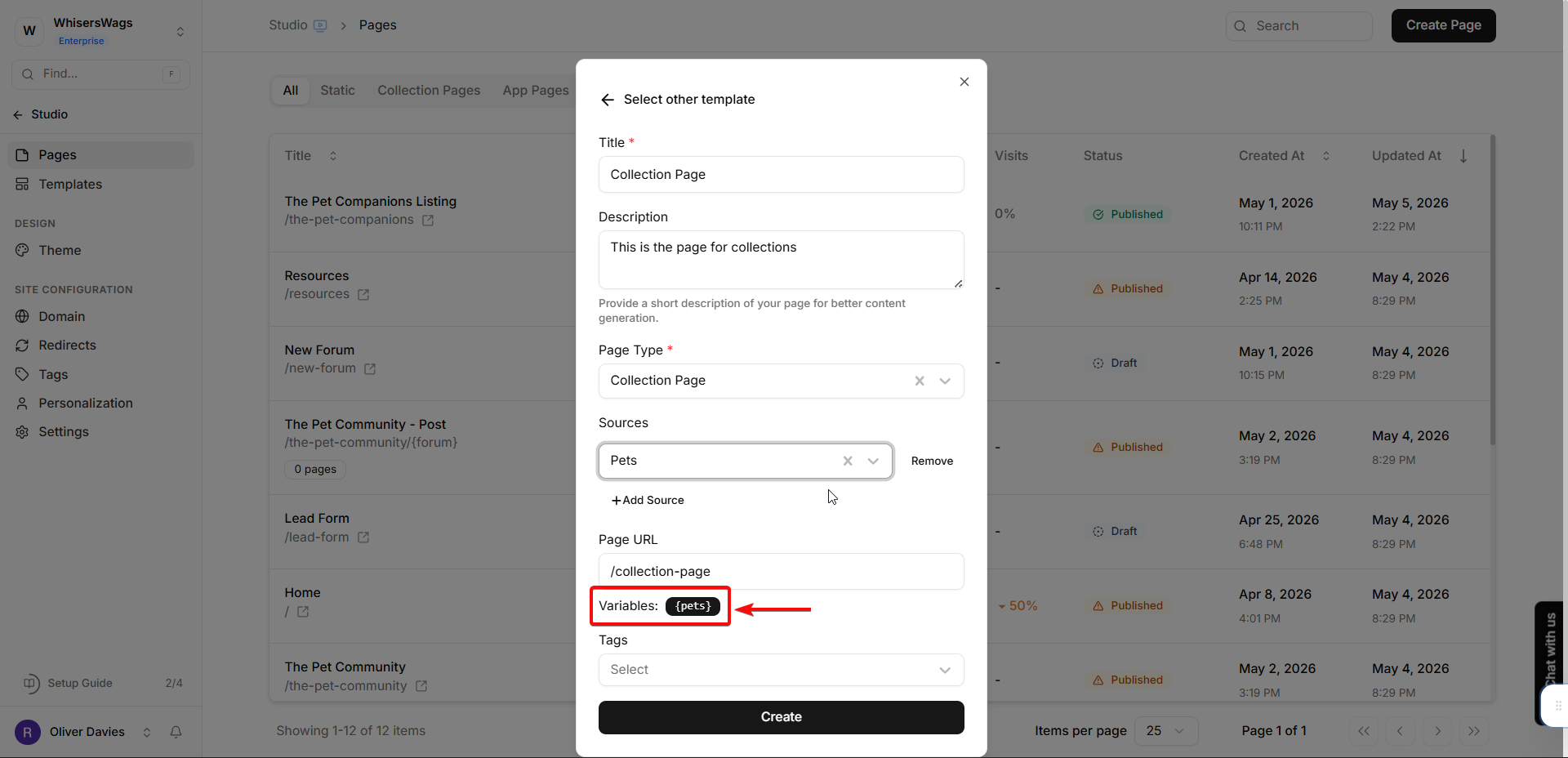
Insert Collection key variables into the Page URL field where needed — URL variables use the Collection's key wrapped in curly braces:
/{collection_key}Create the Page
Click Create to generate a draft page.
Step 3: Add Variables to the Page
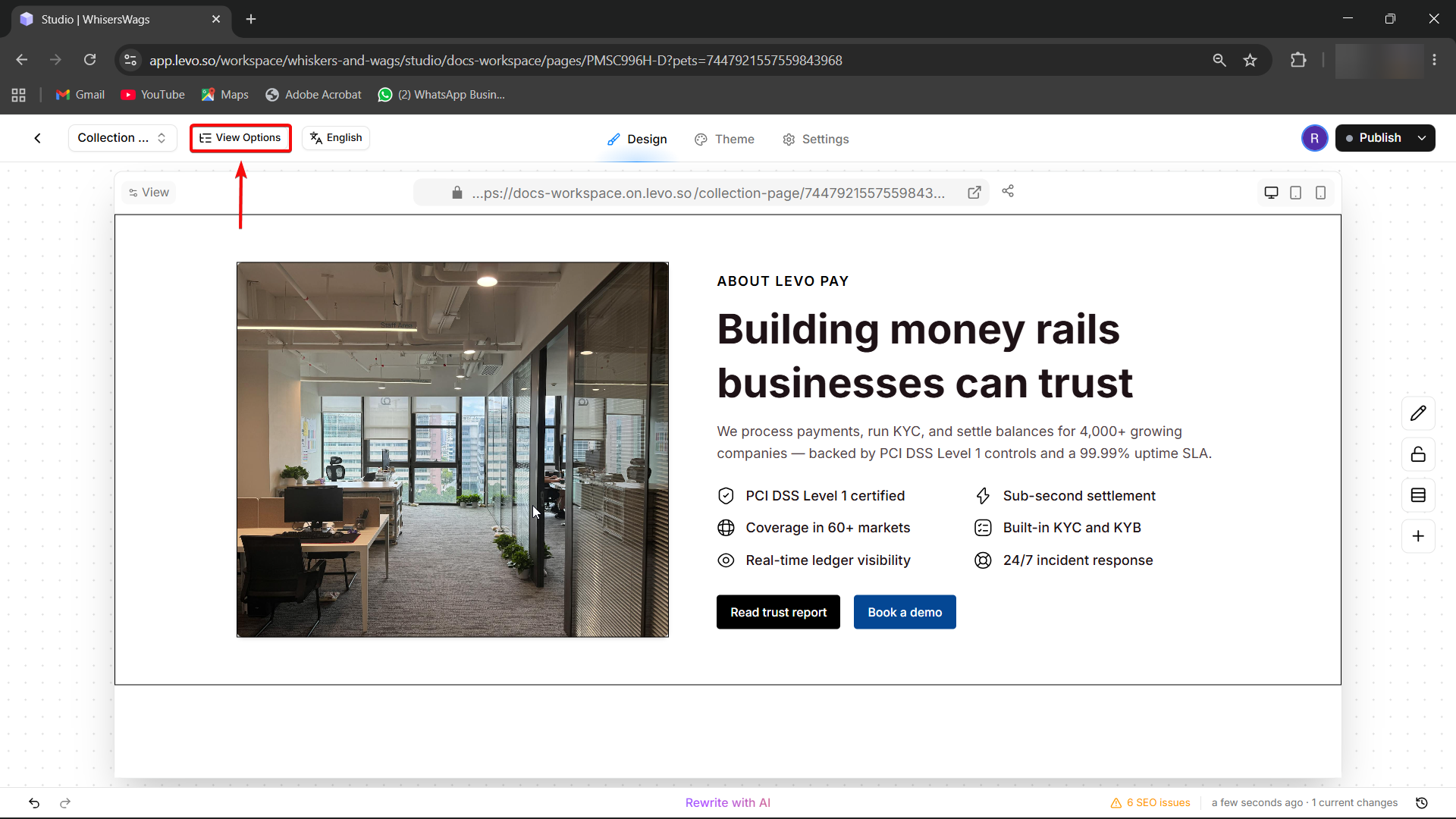
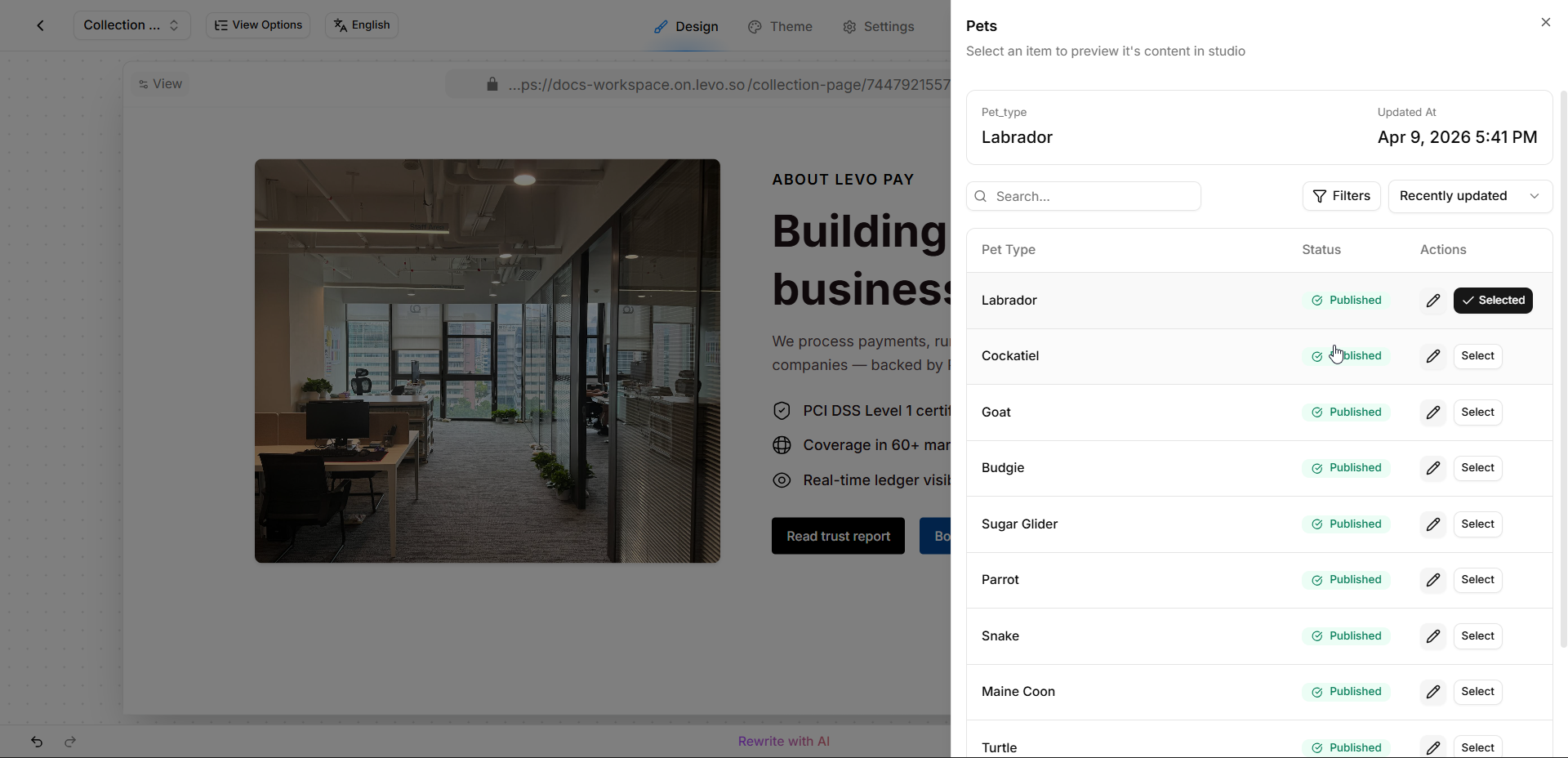
Open the page in Studio. In the top bar, click the "View Options" button (appears when your page has Collection sources). This opens a drawer where you can browse and select specific Collection entries to preview during design.
Display Collection data using this variable format:
{context.collection_key.field_name}
Display Collection data using this variable format:
{context.collection_key.field_name}Component | Meaning |
|---|---|
| Signals a dynamic variable |
| The Collection's key (the identifier you selected when adding the source) |
| The field key containing desired data |
Example: For a Collection slug pets with field animal_name
{context.pets.animal_name}Variables work in headings, body text, buttons, and image alt text.
Step 4: Add Variables to Meta Tags
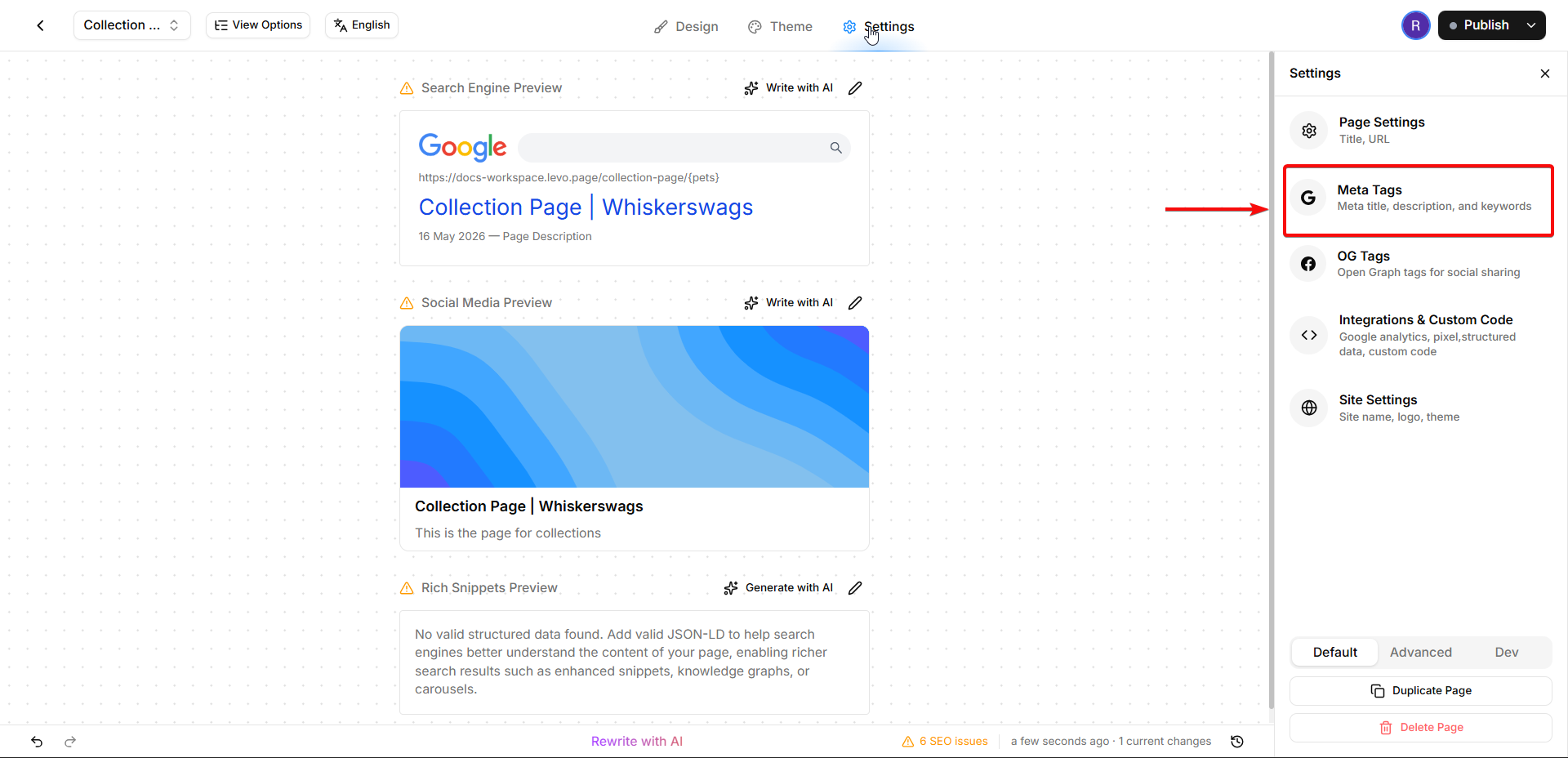
In Studio, click the Settings tab in the top bar, then select Meta Tags.
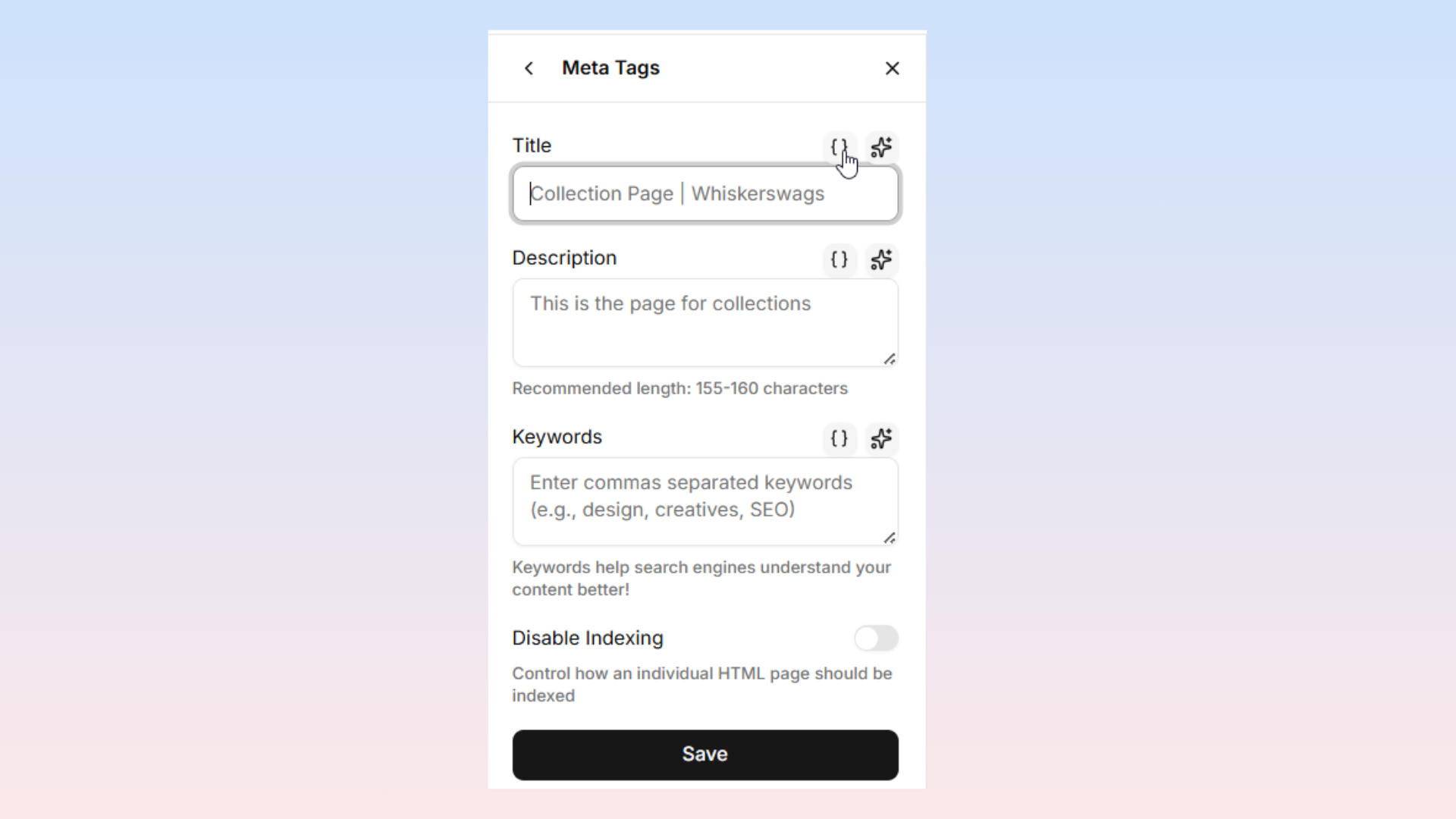
Add variables to the Title, Description, and Keywords fields.
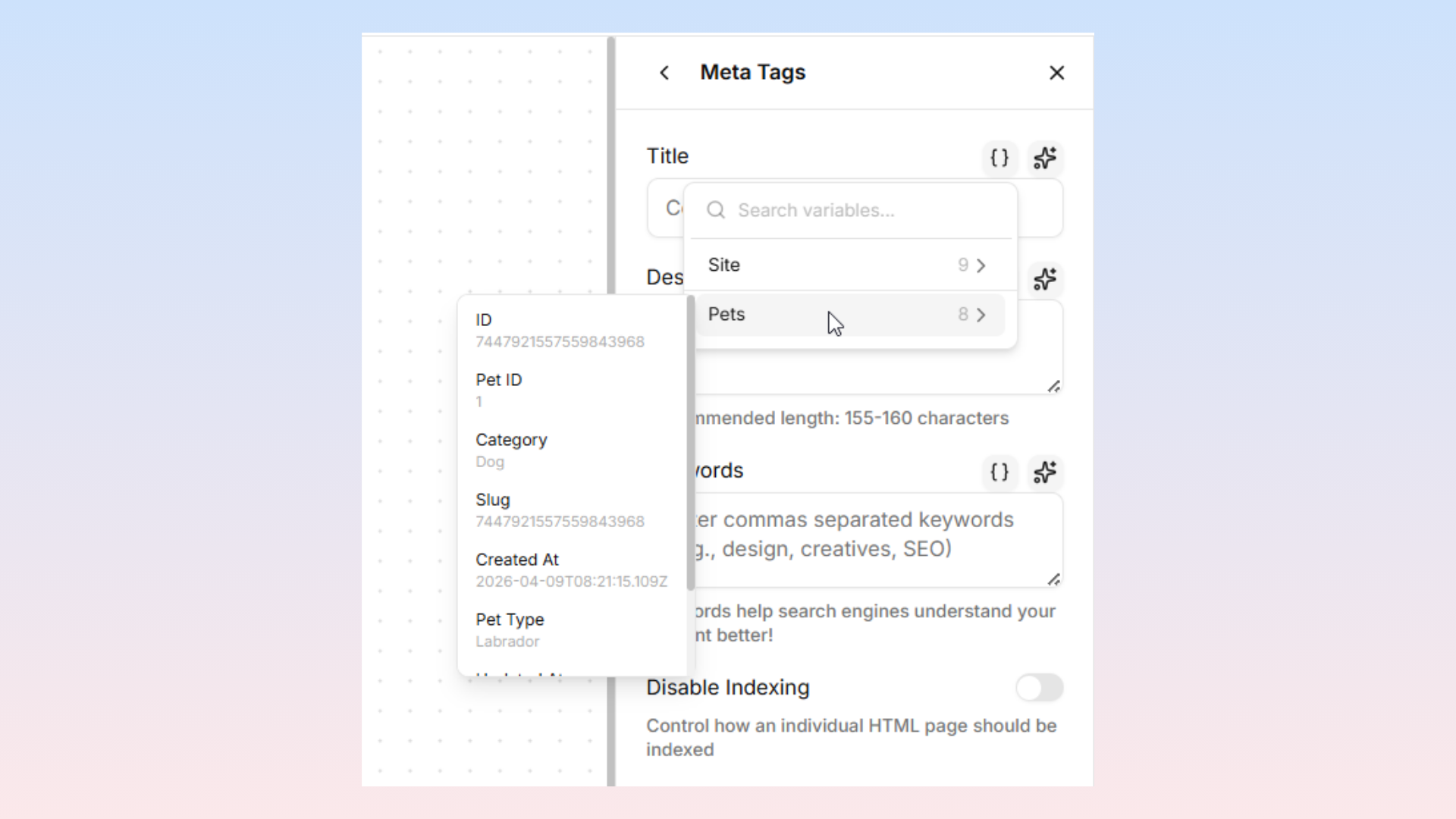
Each field has a Variables popover button that lets you browse and insert available Collection variables.
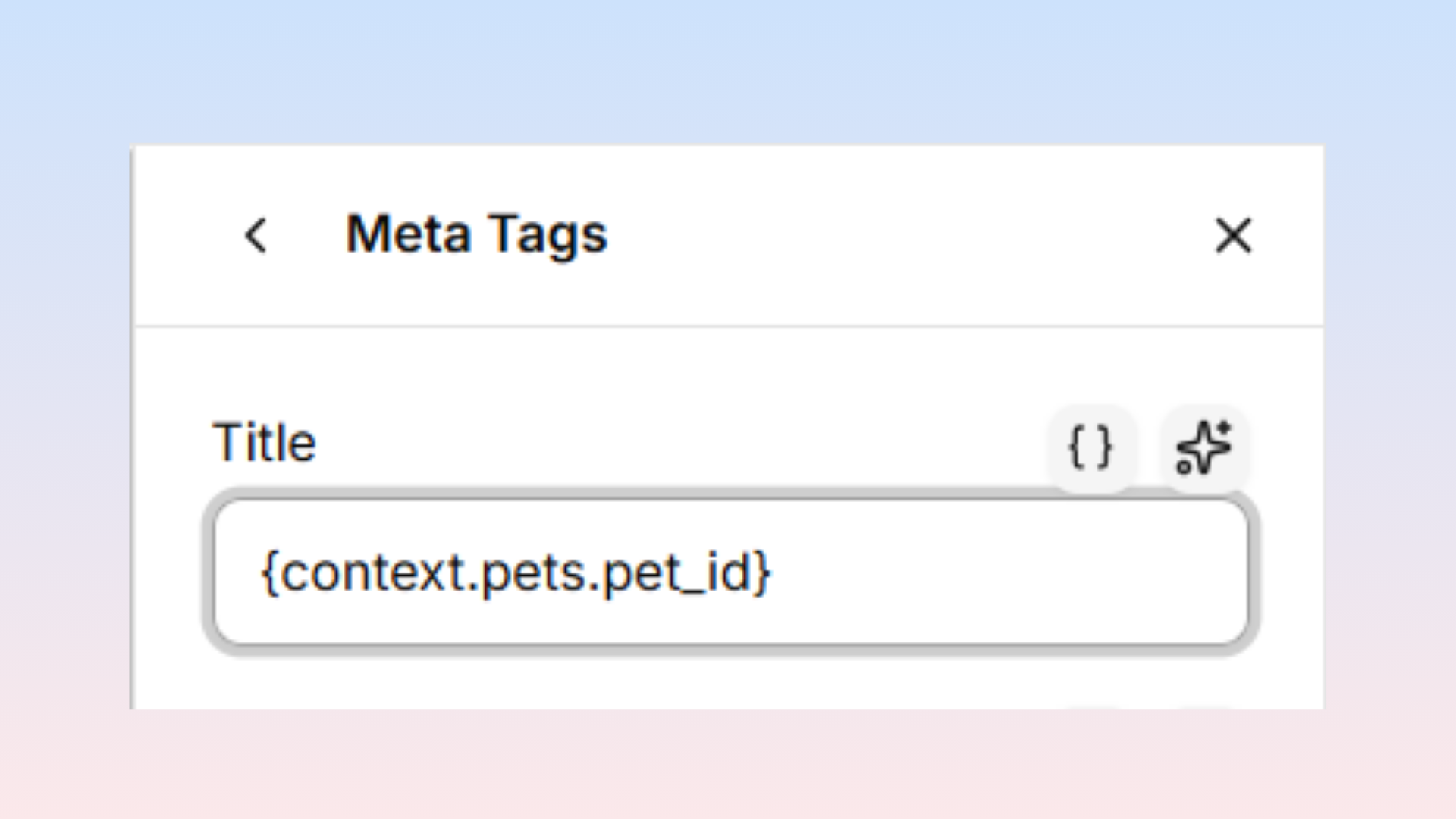
This ensures unique, relevant meta tags for each generated page.
Step 5: Publish
Click Publish and Levo generates all page variations, automatically updating the sitemap.
URL Variable Usage
URLs are built using Collection key variables, with each replaced by the corresponding entry's slug during generation.
Single Collection
/team/{team_members}Generates: /team/alice, /team/bob, /team/carol
Multiple Collections
/buy-{pets}-in-{cities}Generates: /buy-cat-in-london, /buy-dog-in-tokyo, /buy-rabbit-in-paris
Locating Collection Key
The Collection key is the identifier shown when you add a source during page creation. It appears in the source dropdown and is also displayed in the Variables popover throughout the editor. You can find it in the Collections module under the collection's "key" property.
Find the slug in the dashboard URL when opening a Collection: app.levo.so/workspace/my-workspace/collection/pets-123 — the slug is pets-123.
