Managing Your Custom Domain
Once you’ve connected a custom domain to your Levo site, you can easily manage, update, or remove it anytime from your dashboard.
All domain-related actions are available inside Levo Studio.
Levo provides advanced configuration options for users who need more control over how their domain behaves.
When should you use this?
When working with custom frontend setups
When integrating Levo with external systems
When handling advanced hosting or security configurations
1. How to access advanced settings?
Click the Settings (Gear icon) in the top-right corner.
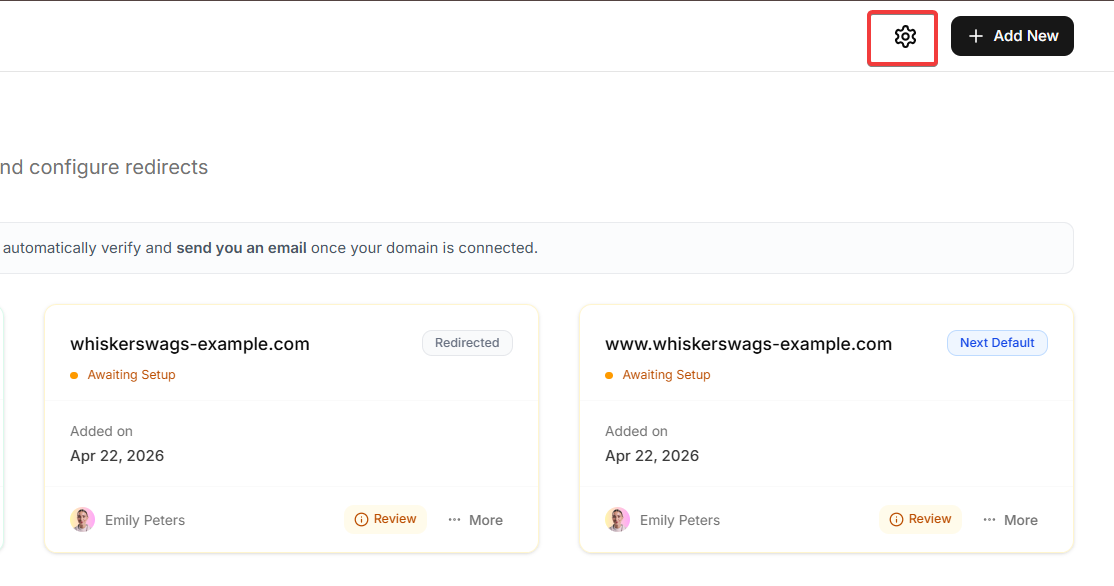
This will open the Advanced Settings panel.
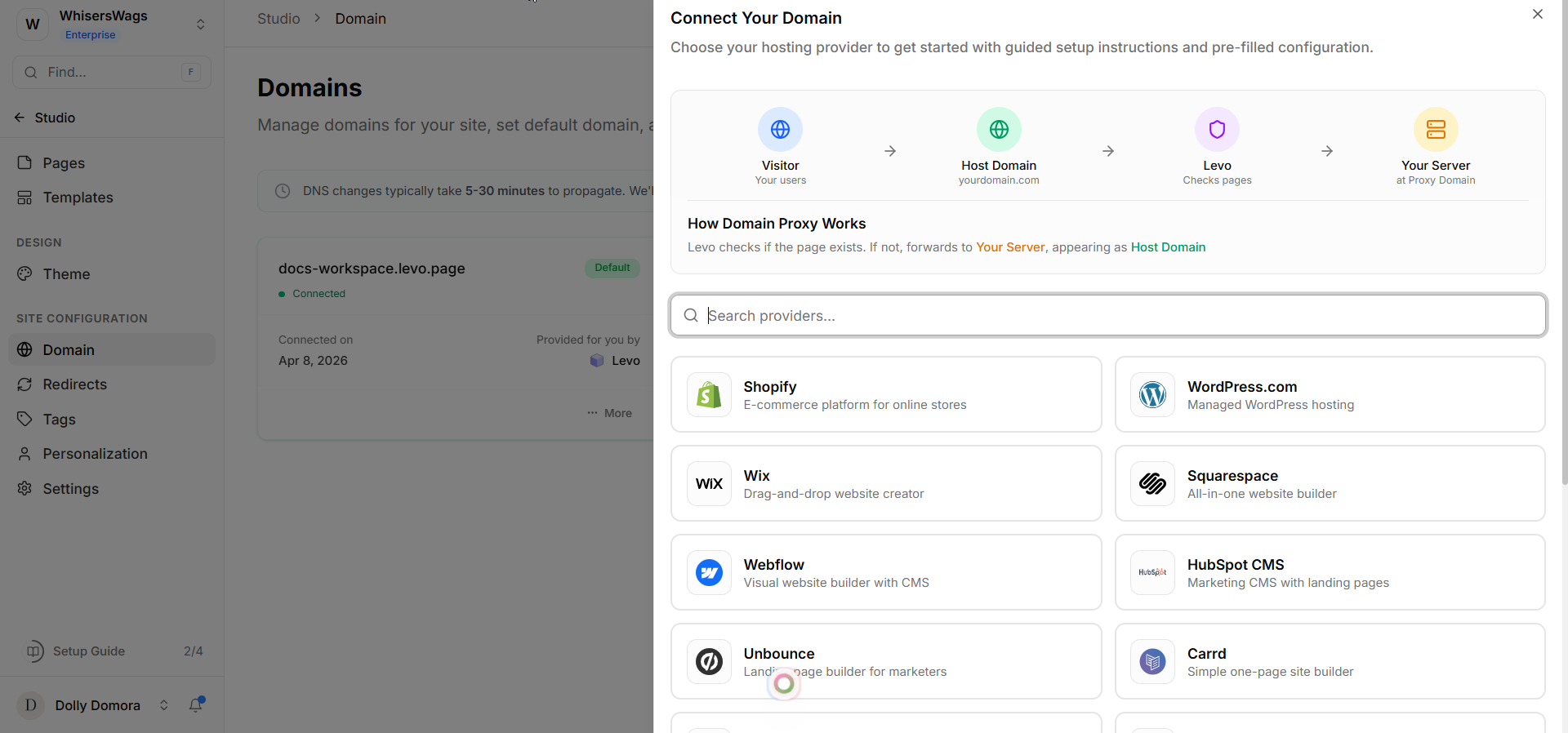
2. How to manage your custom domain?
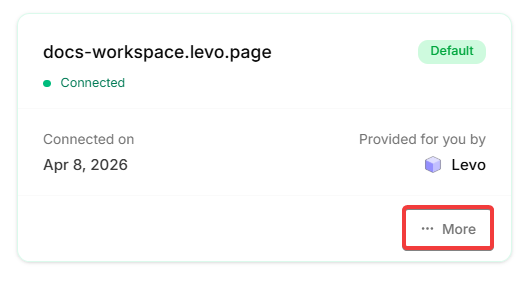
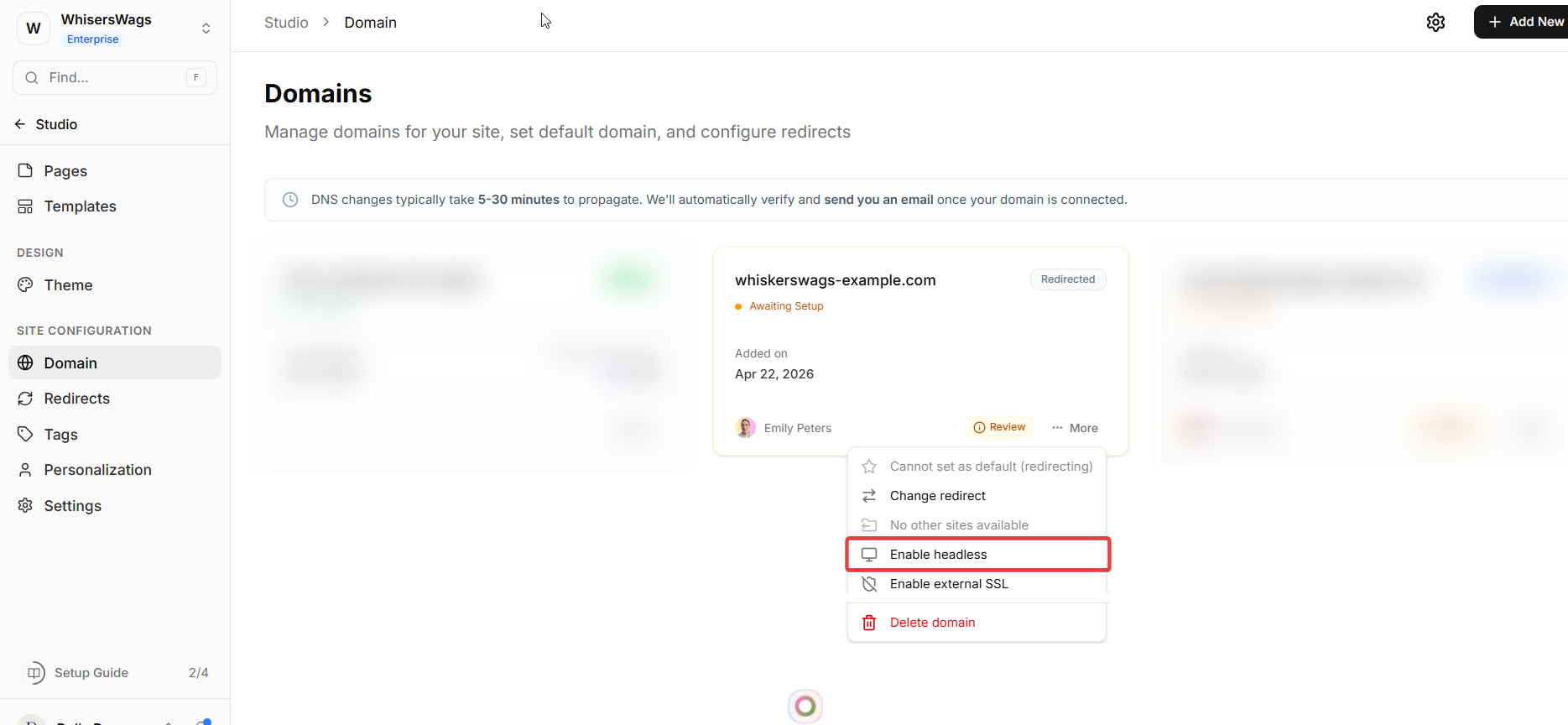
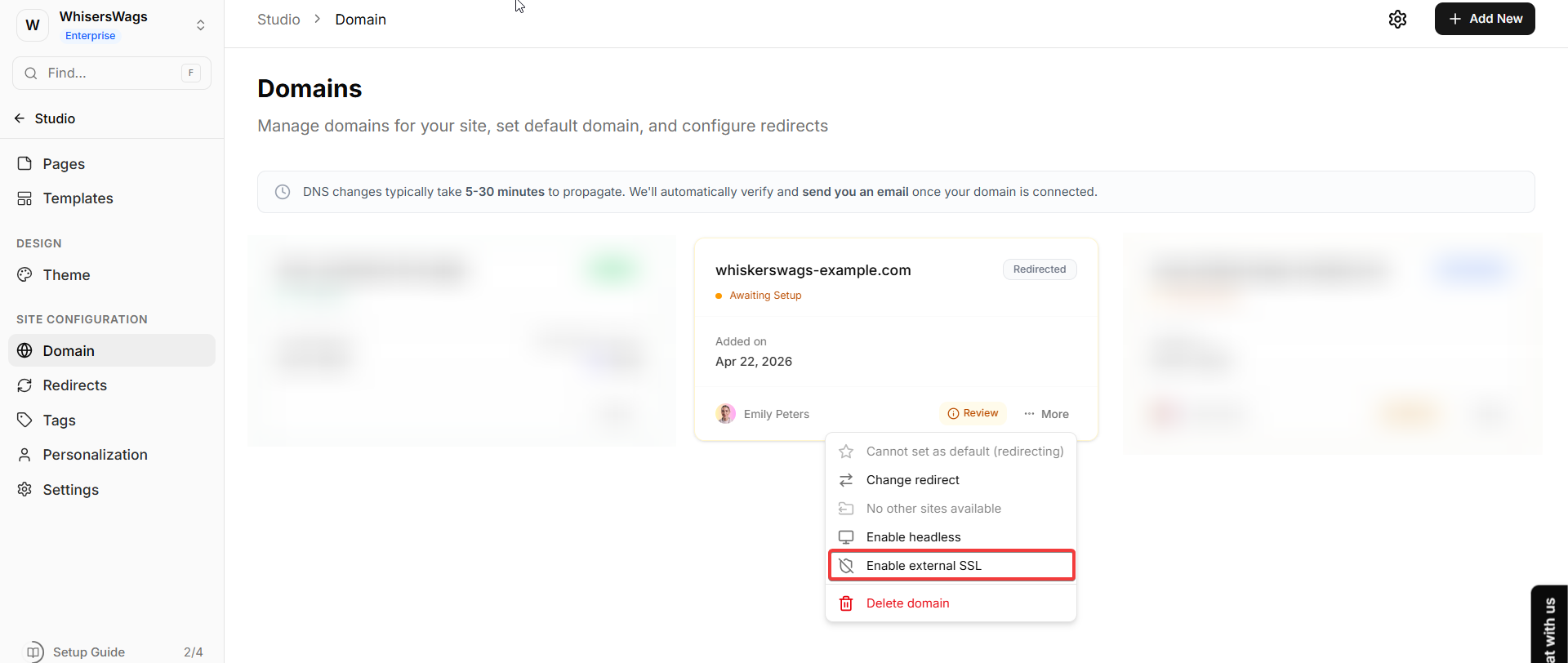
Each domain has a menu (three dots) with options:
Change Redirects
you can change the link and redirect.
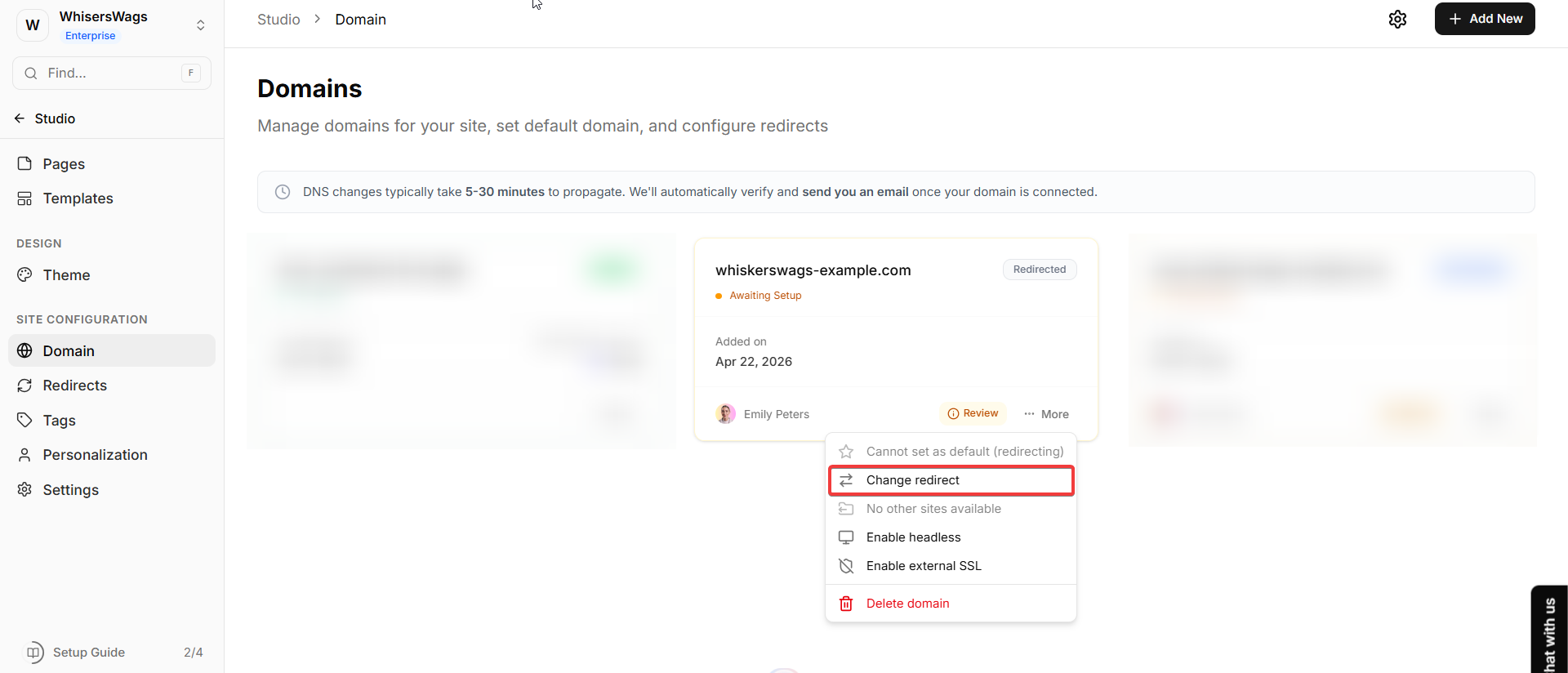
Headless Mode
Allows you to use Levo as a backend (content/data layer) only
Your frontend (UI) can be hosted separately
Ideal for developers building custom interfaces
External SSL
Lets you configure your own SSL certificate
Useful for enterprise setups or custom hosting requirements
Overrides Levo’s default SSL handling
Important Notes
These settings are optional and not required for most users
Incorrect configuration may affect site performance or accessibility
Only use them if you clearly understand the setup
2. Removing a Domain
Need to clean up your workspace and remove an old web address?
Find the card for that specific domain.
Click the three dots (More) icon on the card.
Select Delete domain.
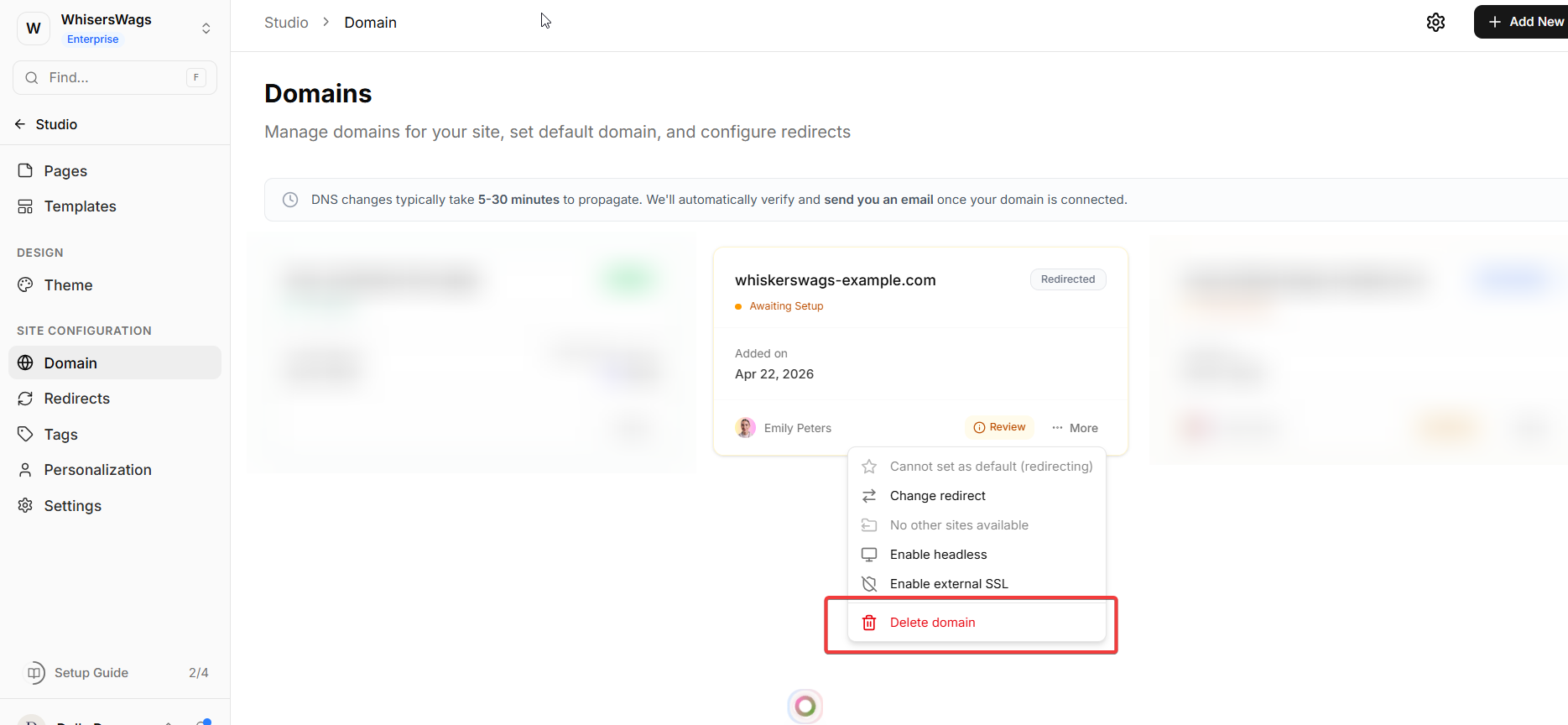
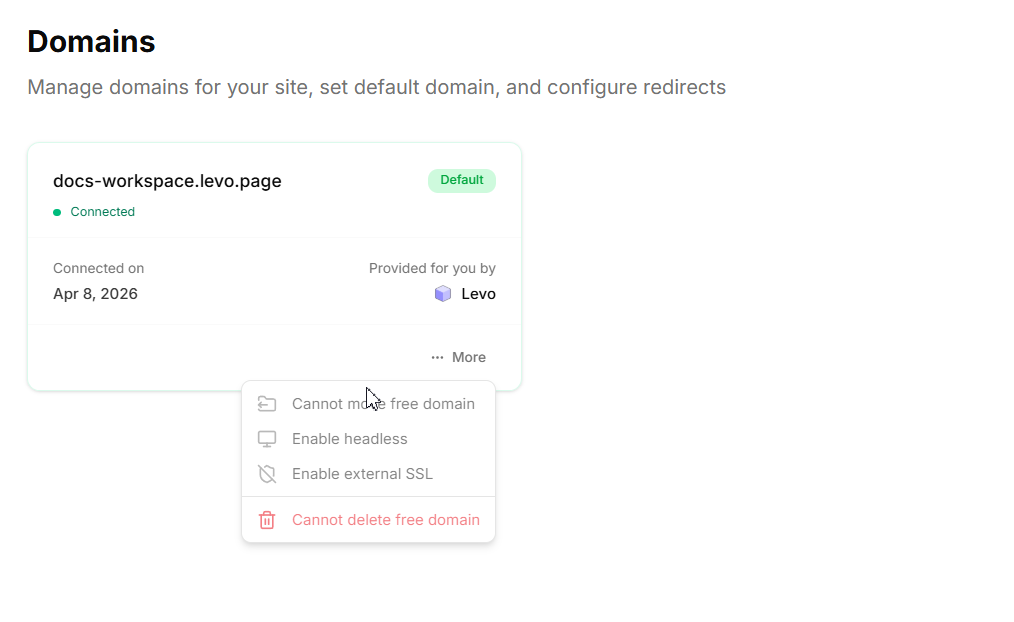
 Important Rule: You cannot delete your current "Default" domain, and you can never delete the permanent, free
.levo.app subdomain that comes with your site out of the box!
3. Best Practices for Domain Management
Always maintain one clear primary domain
Regularly remove unused or outdated domains
Avoid unnecessary changes in advanced settings
Double-check before deleting to prevent broken links
Test your site after making any changes
