Who Can View & Submit to Your Collection?
Collection access controls determine who can view and submit entries, essential for security when your Collection API is exposed.
Collection Access
Collection access controls are important for security because when a Collection is connected to your website — whether as a form, Collection Page, or block — the underlying API becomes accessible.
The Two Primary Settings
Public View Access
This setting determines who can view collection entries on your website or through the public API.
Public Submit Access
This setting determines who can submit new entries through your Levo site or the API.
Both settings default to a fully private state when no access level is selected.
Available Access Levels
Four access level options exist:
None — Team-only dashboard access
Public — Internet access without authentication required
Members — Logged-in site users exclusively
Own entries — Users can only view or edit their own creations
How to Configure Collection Access
Open Collection Settings
Open the Dashboard.
Navigate to:
Workspace → CollectionsSelect the collection you want to configure.
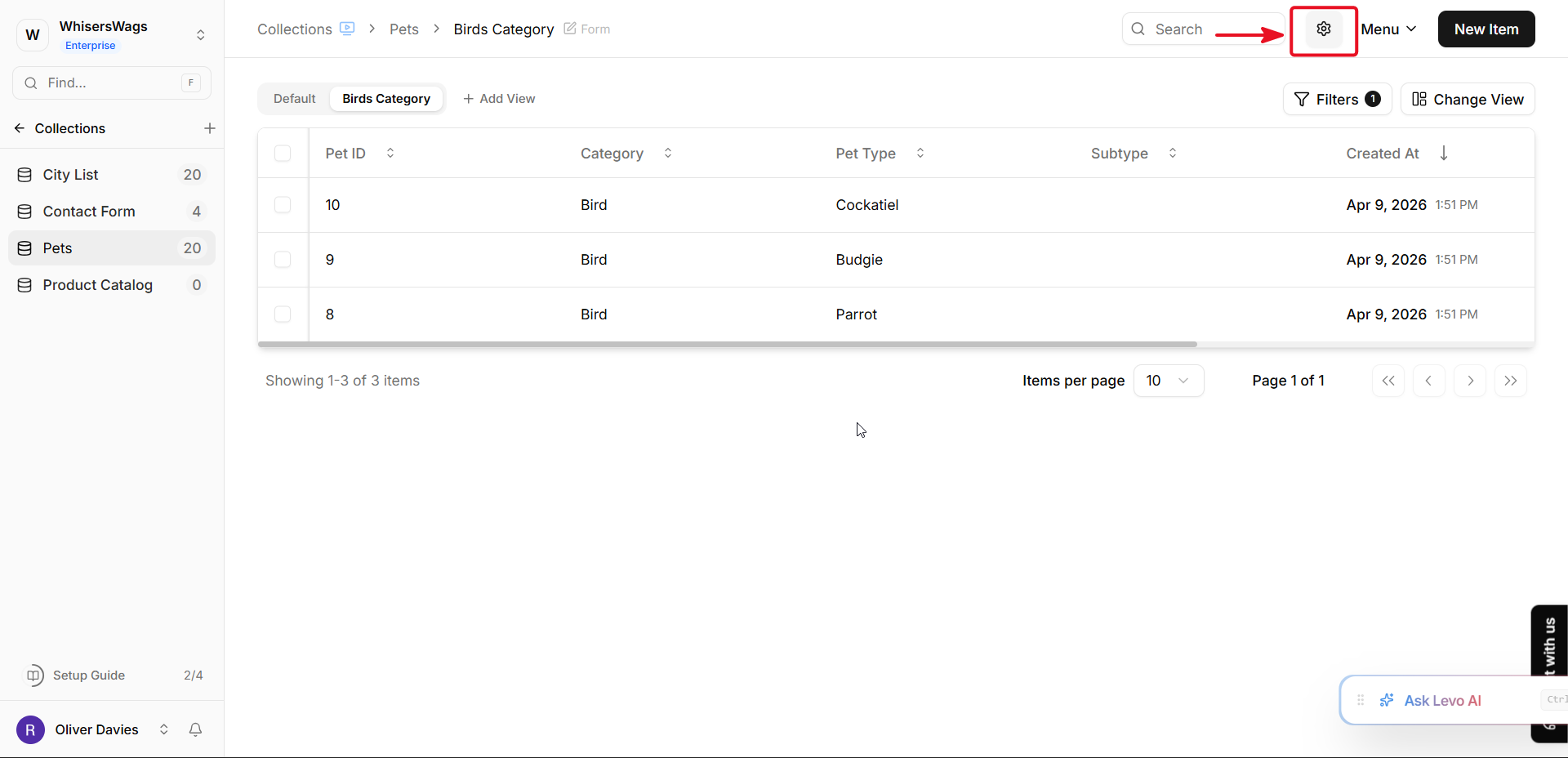
Click the Settings button located at the top-right corner of the collection page.
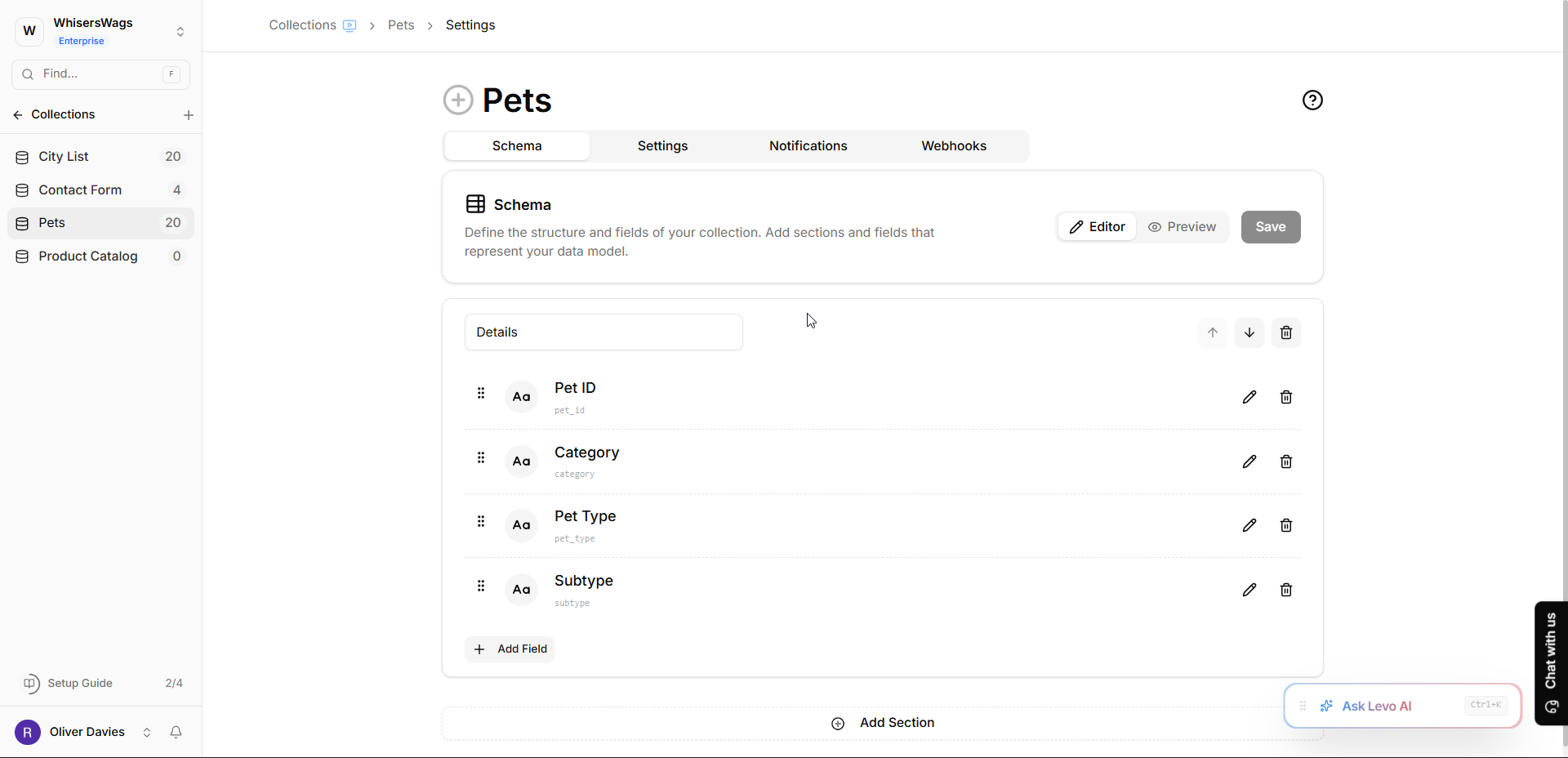
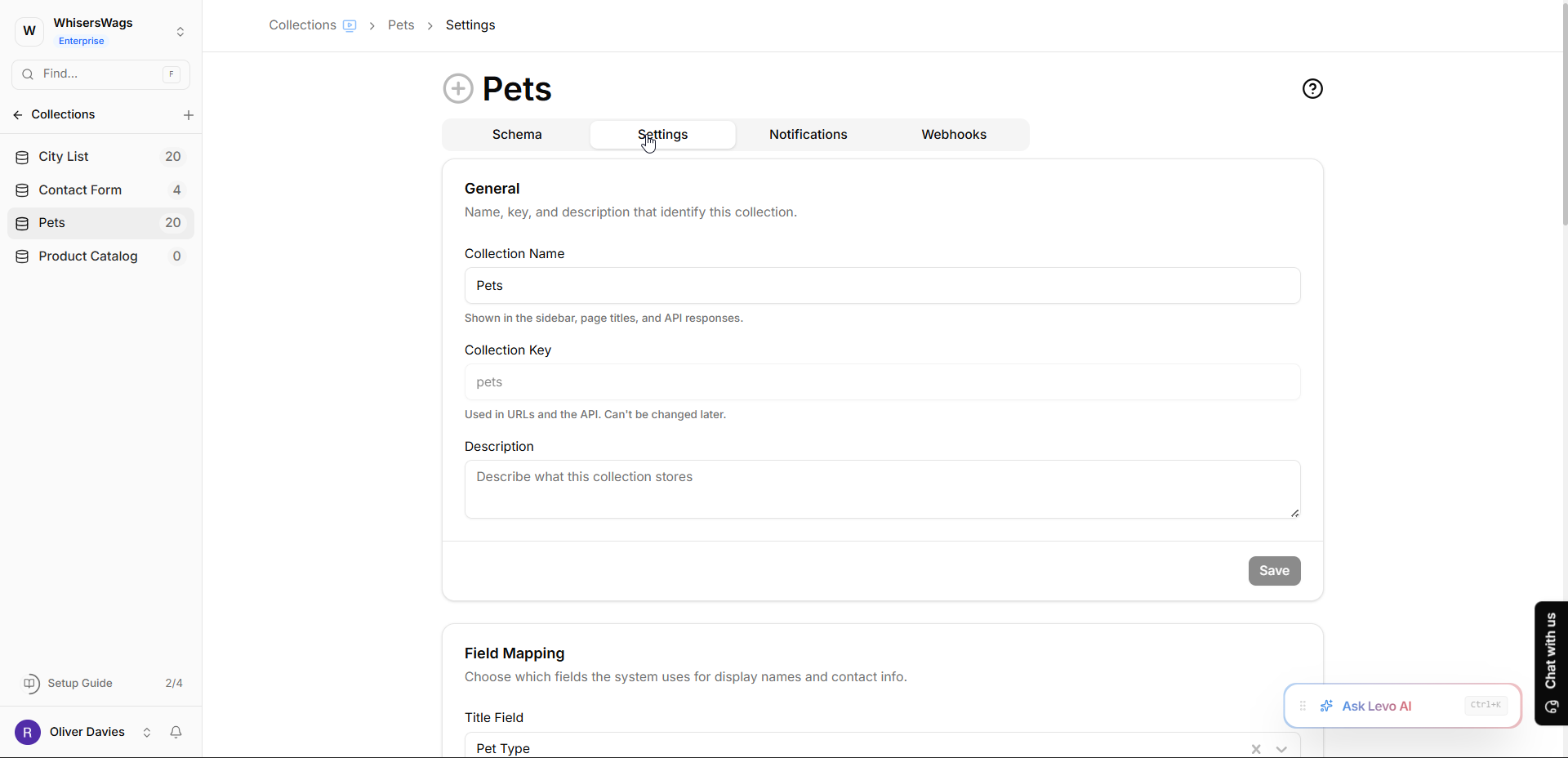
You will be taken to the Schema / Settings page.
Locate the Submission Section
Find the Submission card.
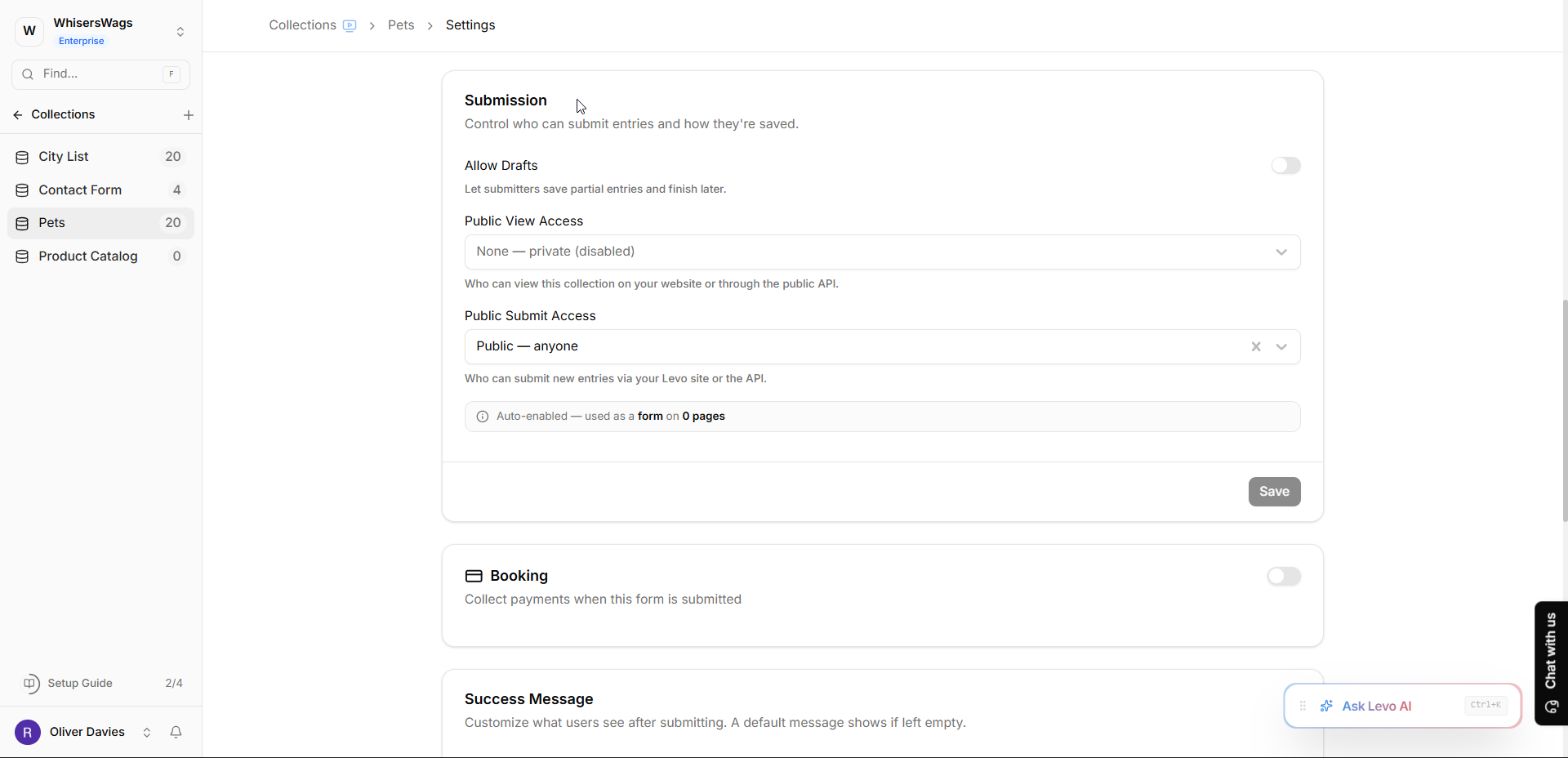
This section contains both:
Public View Access
Public Submit Access
Configure Public View Access
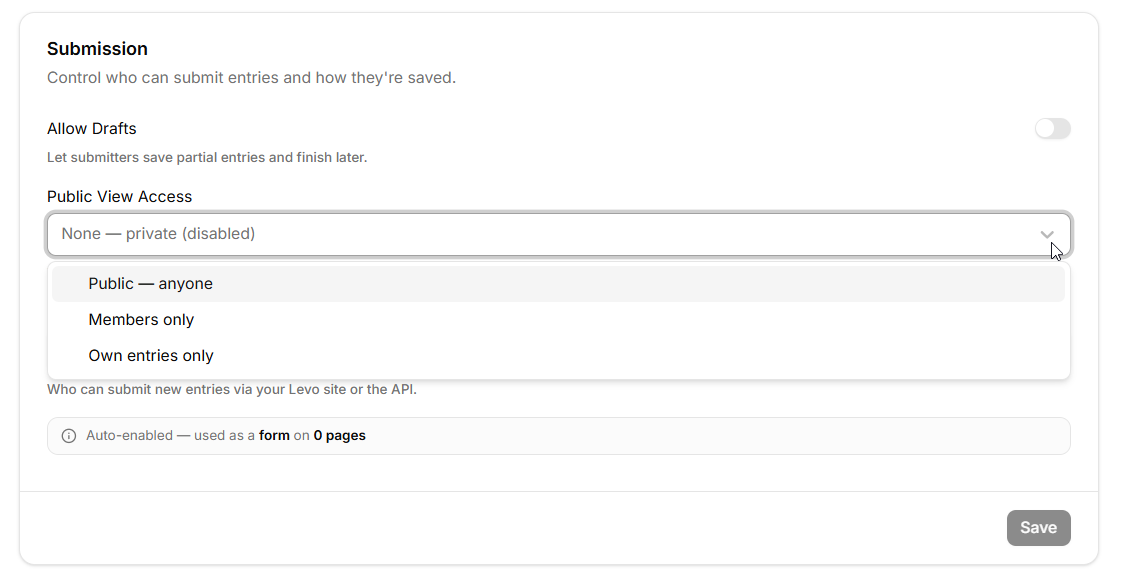
Locate the “Public View Access” dropdown.
Choose one of the following options:
Configure Public Submit Access
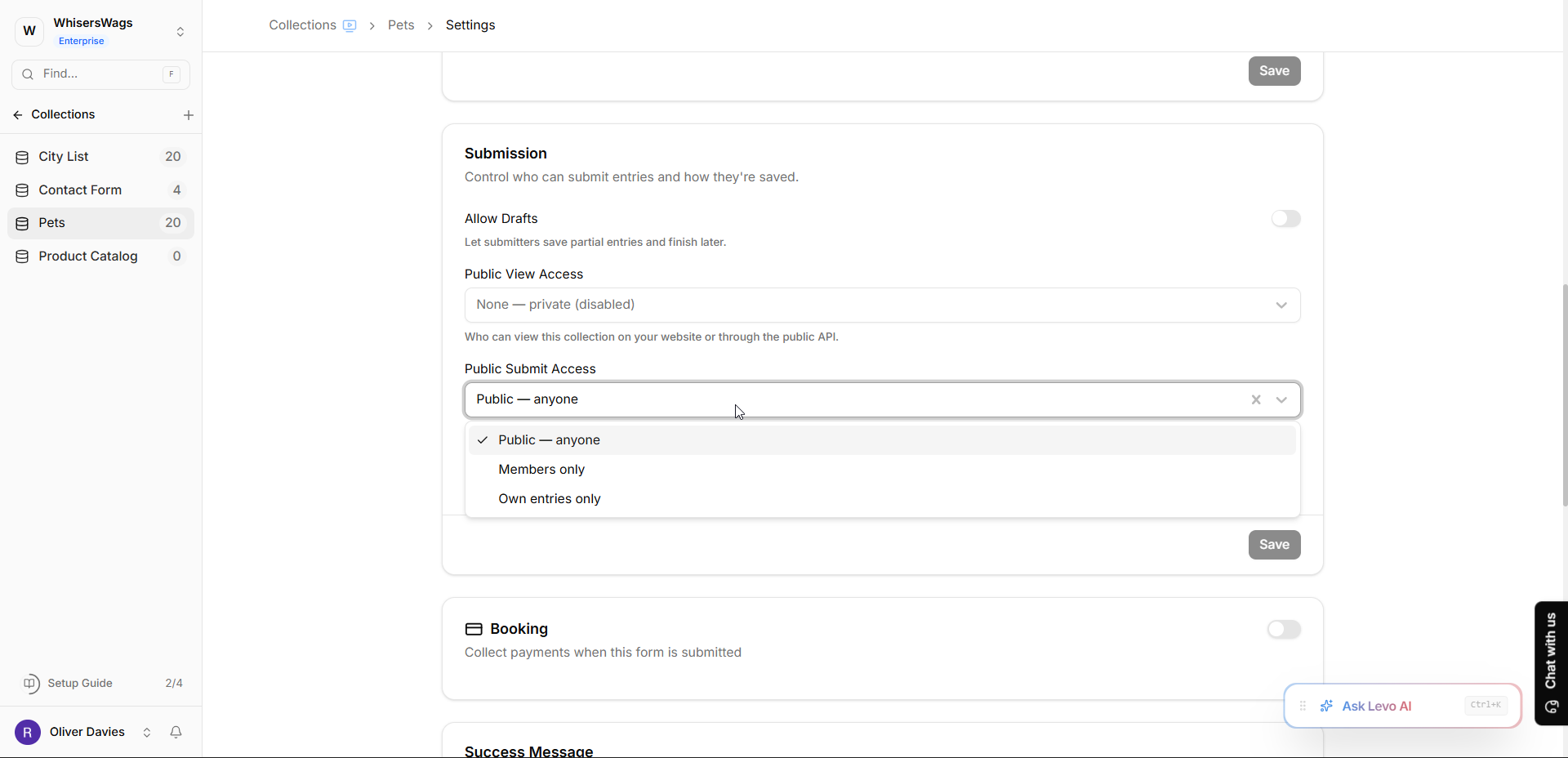
Locate the “Public Submit Access” dropdown.
Choose one of the same access options listed above.
Save Your Changes
After configuring the required access settings:
Click Save at the bottom of the Submission card.
Important Notes
Auto-Enabled Access
If your collection is already connected to pages in Studio as:
a data source, or
a form,
Levo may automatically enable the required access setting.
An informational banner may appear showing:
“Auto-enabled — used as a data source/form on X pages”
The banner may also include a list of affected pages.
Disabling Access Warning
If you attempt to disable access for a collection currently used on pages, a confirmation dialog will appear warning that:
“This collection is used on X pages. Disabling may break these pages.”
Per-Field Access Control
Access can also be controlled at the individual field level.
When editing a field in the schema editor, you will find:
Allow Public View
Allow Public Submit
These settings let you hide sensitive fields from public access while still keeping the collection itself accessible.
Implementation Guidance
For Public Display
Collection Pages and Blocks require View Access set to “Public” or data won’t load due to blocked API calls.
For Submission Forms
The system automatically configures Submit Access as “Public” during form creation, requiring no manual adjustment. However, disabling the form should prompt resetting Submit Access to “None.”
For Restricted Areas
Members-only spaces use either “Members” or “Own entries” depending on whether users should access all data or only their own.
Field-Level Privacy
Individual fields can have custom View Access restrictions separate from Collection-level settings, protecting sensitive information like costs or internal notes while keeping the Collection public. Restricted fields display badges in the schema editor.
Quick Reference
Scenario | View Access | Submit Access |
|---|---|---|
Blog / directory / catalog | Public | None |
Contact / signup forms | None | Public (auto-set) |
Members dashboard | Members | Own entries |
Internal data | None | None |
