Setting Up Countries & Groups for Personalization
Before targeting specific countries in page variants, you must add those countries to your workspace.
Countries & Groups
Before targeting specific countries in page variants, you must add those countries to your workspace. Think of it as building your list of regions you actively serve or want to target.
Accessing Countries Settings
Navigate to Site Configuration → Personalization → Countries tab. Added countries display as chips with flags and country codes.
Adding Countries
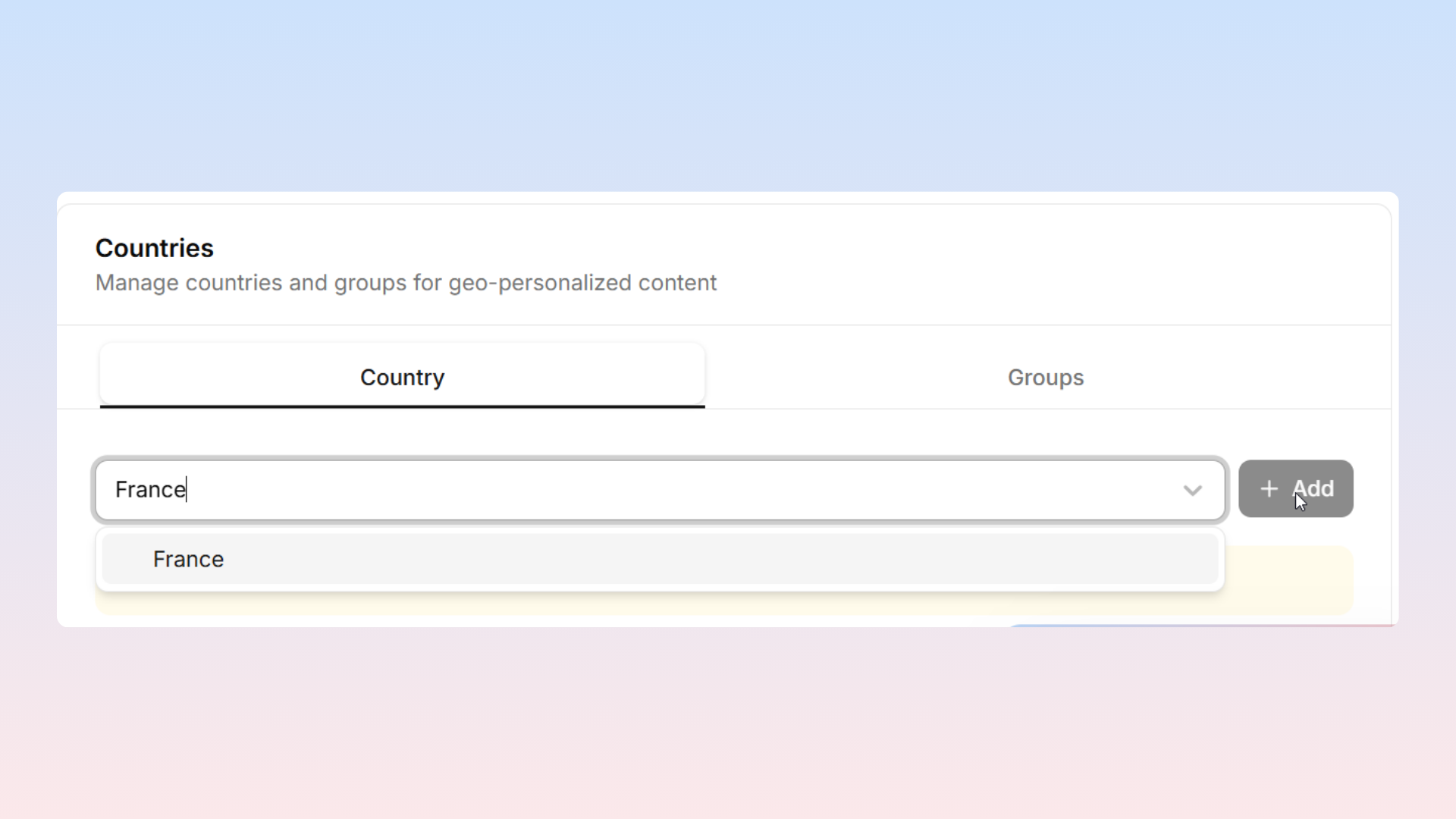
Click the Add button to search for countries by name. Once selected, countries appear as chips displaying their flag and code. You can add as many countries as needed.
Removing Countries
A trash icon appears on each country chip for deletion.
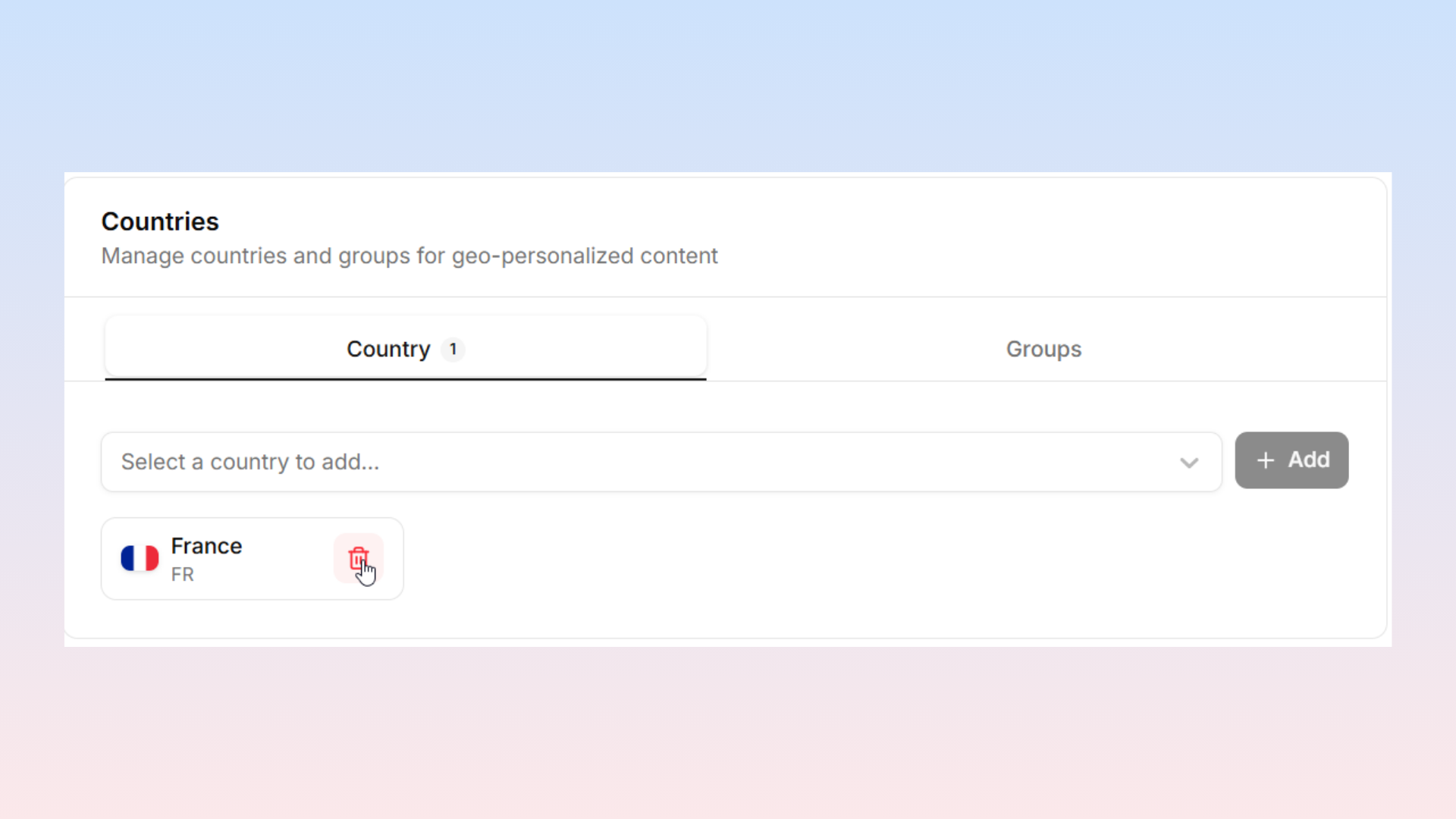
Warning: If any pages have variants targeted to that country, those variants will no longer be served. Only remove countries when you are certain you are no longer targeting them.
Country Groups
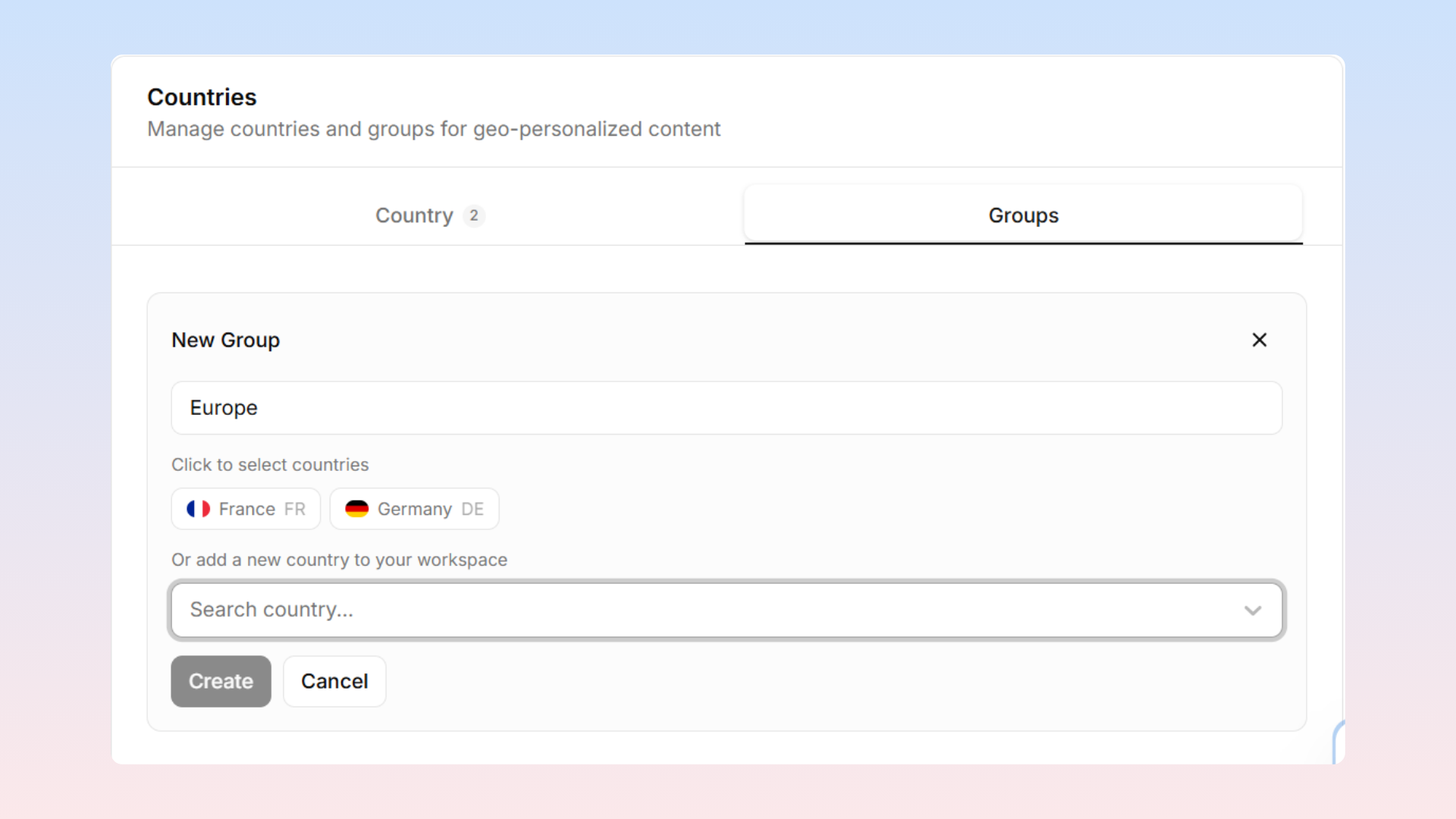
Country groups let you consolidate multiple countries under a single name, so you can target them all at once without selecting each one individually.
Common Examples
Europe — EU member states
APAC — Australia, Japan, Singapore, South Korea, etc.
English-speaking — US, UK, Canada, Australia, New Zealand
LATAM — Mexico, Brazil, Colombia, Argentina, etc.
Creating Groups
Click the Groups sub-tab, select Add Group, name the group, and add countries via the multi-select input.
Editing and Deleting Groups
Groups expand to display their countries. You can edit the group name or modify its membership. Deleting a group removes only the group itself, not the individual countries.
Comparison: Individual Countries vs. Groups
Feature | Individual Countries | Country Groups |
|---|---|---|
Purpose | Target a single country | Target multiple countries at once |
Usage | Select one country per variant targeting rule | Select one group to target all member countries |
